Overview
In this activity, we will explore how to use the resize function in OpenCV to change the size and dimensions of an image, and we will explore the strange but powerful affine warping method for doing other geometric transformations (including translation and rotation of image contents).
The Github repository for this assignment will contain a starter code file, activ12.py. Put your code in this file, and create others, as directed below and according to the TODO comments in the file.
Resizing images
The most basic transformation is resizing an image. The resize function will scale a picture up or down, and can also be used to stretch an image. You must give the resize function a source image and an input for the dimensions of the new picture. If you want to scale images by multiplying the image dimensions by a factor, you can do that, by putting in a “nonsense” size of (0, 0) and then specifying the fx or fy optional inputs.
The matchSize function below takes in two images. It resizes the second image to match the dimensions of the first image, and returns the resized image.
Try this: Run the sample calls to this function in activ12.py. Add more calls, including some extreme resizing using some of the large and tiny images.
Next is a partial program that you will complete. This program scales an image up and down, displaying it in the same window so that it seems to pulse larger and then smaller. The only piece missing is the actual resizing of the image.
def pulseSize(img):
deltaSize = 0.05
currScale = 1.0
while True:
cv2.imshow("Pulse", img)
x = cv2.waitKey(30)
if x >= 0 and chr(x) == 'q':
break
if (currScale > 3.0) or (currScale <= 0.2):
deltaSize = -deltaSize
currScale += deltaSize- 1
- Each pass of the loop, the scaling factor will change by this amount
- 2
- This is the scaling factor for resizing the image
- 3
- This uses a while loop like we do when displaying video: a similar structure!
- 4
- Just like with video, pressing the q key will end the loop
- 5
- If the scaling factor gets too large, or too small, change the direction it is changing
- 6
- Update the scaling factor here before the next pass of the loop
currScale
In writing this function, I had to be very careful about checking the bounds on currScale. In particular, I had to set the lower bound higher than I wanted to avoid a failure by the resize function.
We defined currScale to be a floating-point value. All floating-point values are approximations of real numbers, and so roundoff error can accumulate, leading to values that are not precise. In activ12.py this function has a print statement included that will print out the values of currScale. Try uncommenting that print statement and look at the values it has. Notice how their least significant digits are off from what we would expect!
When working with floating-point numbers, you should always use inequalities to compare values, because the roundoff error makes direct equality difficult. When we do need something like direct equality, we often use an alternate method: compute the difference between the two floating point values we want to be equal, and consider them equal if the difference is below some threshold: abs(currScale - 0.1) <= 0.01 would approximate checking if currScale is equal to 0.1, allowing for an error of up to 0.01.
Try this to hand in: We want to add steps to resize the input image, just inside the while loop, and then we want to display the resized image.
- Add a call to
resizejust above thecv2.imshowline inside thewhileloop. Pass it the input image, and set the image dimensions to(0, 0). Set thefxandfyoptional inputs to becurrScale. - Be sure to save the image returned by
resizeinto a new variable - Change the
imshowline to show your new resized image
Translation
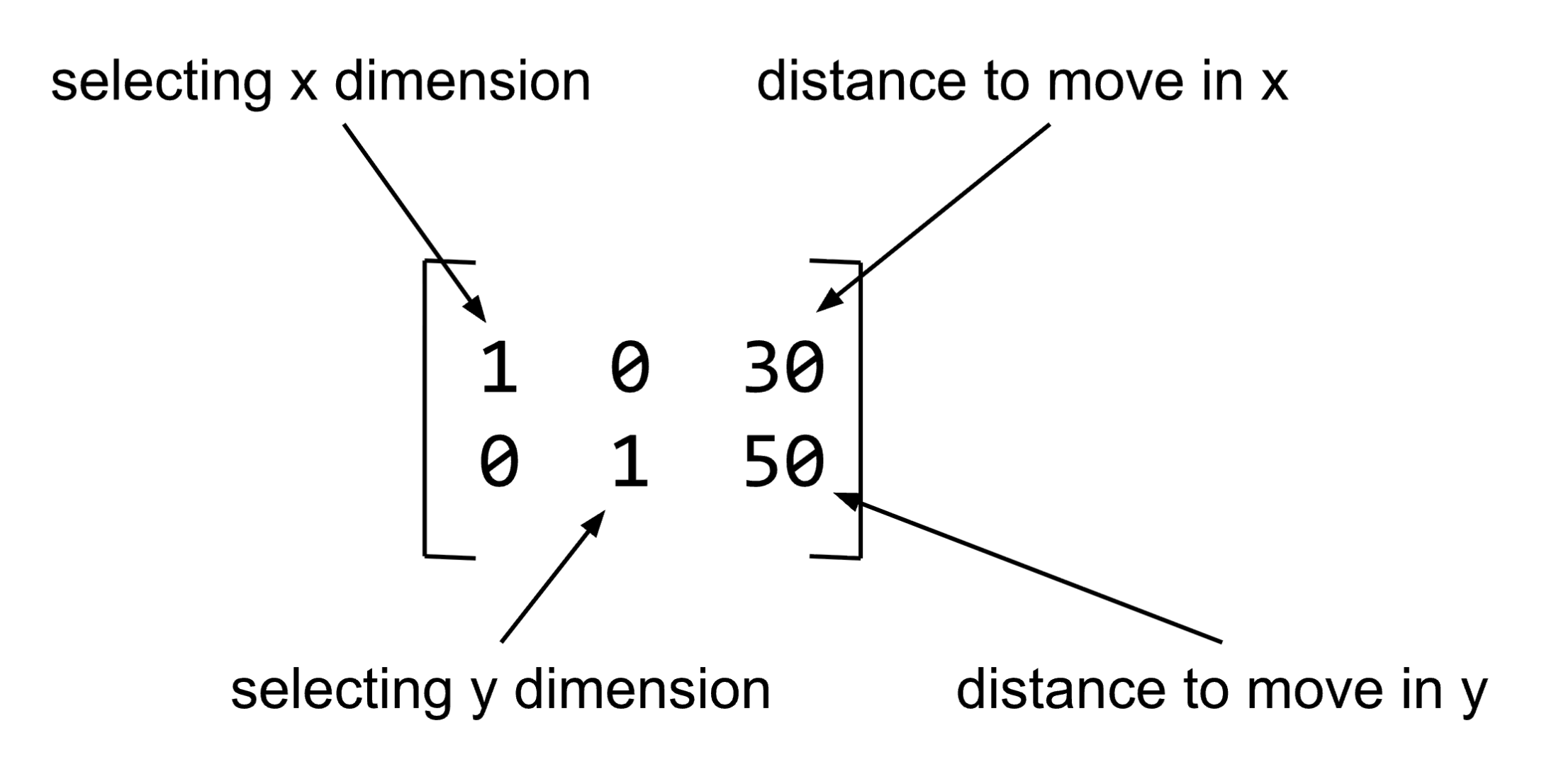
The example in Figure 1 below illustrates how to create a translation matrix and make a new image with the old image moved to a new location. The first row of the translation matrix selects the column dimension, and moves the colors 30 pixels to the right. The second row of the matrix selects the row dimension, and moves the colors 50 pixels down.
Below is a picture of the data in the matrix, and what each part means.
The script below shows how to create a matrix to perform image translation, using the warpAffine function. A copy of this script is in your activ12.py file. Try this script, and try changing the 30 and 50 to different values, including negative numbers.
img = cv2.imread("SampleImages/snowLeo2.jpg")
(rows, cols, dep) = img.shape
transMatrix = np.float32([[1, 0, 30], [0, 1, 50]]) # change 30 and 50
transImag = cv2.warpAffine(img, transMatrix, (cols, rows))
cv2.imshow("Original", img)
cv2.imshow("Translated", transImag)
cv2.waitKey(0)- 1
-
We need the size of the original image, as
warpAffineneeds to know how big a “canvas” to show the result on - 2
-
warpAffineexpects a 2 by 3 Numpy array holding 32-bit floating-point numbers.np.float32is likenp.arraybut it creates an array where the data are 32-bit floats. - 3
-
The
warpAffinefunction takes the original image, the 2x3 matrix, and the size for the new image it creates
Try this: Experiment with this script in your activ12.py file, until you understand how to specify the change in x or y positions (only change the 3rd value in each row of the matrix).
CHOOSE ONE OF THE TWO TASKS BELOW TO COMPLETE
Try this to hand in: In the activ12.py file, make a copy of the videoProcess and processImage functions, and rename them jitterVideo and jitterImage. Then do the steps below: take them one at a time and test each before moving forward.
Modify the jitterImage function to:
- Generate a random integer in the range from -100 to +100 for how far to translate the image in the x direction
- Do the same for the y direction
- Create the 2x3 translation matrix, as shown above, using your two new variables for the translation distances
- Change the call to
image.copy()so that it callswarpAffineinstead, using the translation matrix you just defined
Modify the jitterVideo function to:
- Call
jitterImageinstead ofprocessImage
Test your program: how does it look? You could modify the range for your random offsets to get a nice “jittery” effect, or you could add in a delay where it only generates a new offset very k frames, instead of each frame.
Try this to hand in: In the activ12.py file, make a copy of the videoProcess and processImage functions, and rename them bounceVideo and bounceImage. Then do the steps below.
Modify the bounceImage function to:
- Take in two extra inputs,
txandty - Create the 2x3 translation matrix, as shown above, using
txandtyfor the translation values in the matrix - Change the call to
image.copy()so that it callswarpAffineinstead, using the translation matrix you just defined - Make the new image size 2 times the width and 2 times the height of the original image size
Modify the bounceVideo function to:
- Set up four variables before the
whileloop:tx,ty,deltaX, anddeltaY. Initializetxandtyto be zero, and setdeltaXanddeltaYto be 3. - Change the call to
processImageto callbounceImageinstead, and passtxandtyto it as well as the frame - At the bottom of the
whileloop, add steps to updatetxandtyby addingdeltaXanddeltaYto them - Add steps to check whether it is time to bounce (this will be similar to the
maskVideoprogram from ICA 11)- If
txis less than or equal to zero, then negatedeltaX - If
tyis less than or equal to zero, then negatedeltaY - If
txplus the image width is greater than or equal to 2 times the image width, then negatedeltaX - If
typlus the image height is greater than or equal to 2 times the image height, then negatedeltaY
- If
Test your program: Does the video feed bounce the way you expected it to?
Rotation
If we want to rotate an image, we can use warpAffine, but we need to create a form of the rotation matix to tell it what to do. Fortunately, OpenCV provides a helper function, getRotationMatrix2D that will do the calcululations for us. It takes three inputs:
- The (x, y) coordinates of the pixel we want the rotation to rotate around. Imagine sticking a pin into the picture at that location and then rotating the image around the pin.
- The angle (in degrees) that we want to rotate the image; positive angles rotate counter-clockwise, negative angles rotate clockwise
- A scaling factor, that scales the image to preserve its aspect ratio: a value of 1 causes no change in size
The script below rotates a picture by different amounts, writing the amount in white in the lower right corner of the new window. Examine the code to understand how the call to getRotationMatrix2D works, in conjunction with warpAffine.
img = cv2.imread("SampleImages/californiaCondor.jpg")
cv2.imshow("Original", img)
(rows, cols, depth) = img.shape
for angle in [30, 45, 60, 90, 120, 135, 150, 180, -45, -90, -180]:
    rotMat = cv2.getRotationMatrix2D( (cols / 2, rows / 2), angle, 1)
    rotImg = cv2.warpAffine(img, rotMat, (1.5 * cols, 1.5 * rows))
    cv2.imshow("Rotated", rotImg)
    cv2.waitKey(0)
This shows a series of different angles, all with the same center point.
Try this: Try varying the center point, which here is set to be the center of the picture. Maybe try rotating around (100, 100) then (200, 200), then (400, 400), etc. How does the result change?
Try this to hand in: In the activ12.py file, make a copy of the videoProcess and processImage functions, and rename them spinVideo and spinImage. Then do the steps below.
Modify the spinImage function to:
- Take in one extra inputs, an angle
- Call
getRotationMatrix2Dfor the rotation around the center point, with the input angle (and scaling factor = 1) - Change the call to
image.copy()so that it callswarpAffineinstead, using the rotation matrix returned bygetRotationMatrix2D - Make the new image size either the same size or twice the size, depending on which look you like
Modify the spinVideo function to:
- Set up an
anglevariable before the loop, and set it to 0 initially - Inside the loop, change the call from
processVideotospinVideo, and passangleto it - Add an update step that adds some fixed amount to the
angle(try small values like 1, 2, 5, or larger ones like 10 or 20)
Test your program: How does it work? For which changes to the angle does the result look smooth versus jumpy?
General warping (Optional)
The end of the reading also showed how to use the helper function getAffineTransform to specify a general warping process.
If you want the challenge, try using general warping to twist or stretch the video feed.
Make another copy of the videoProcess function and its helper, and modify them to do this:
- Choose 3 reference points in the original image
- Initially, set the new points to the same (x, y) locations
- Each new frame, move the new points a small amount, causing the image to warp
- Display the warped image
- At some point, reverse the change in direction for the new points, gradually returning toward the original image
What to hand in
Put all of your function definitions for this activity into the activ12.py file to be submitted. Make sure you format your code appropriately:
- At the top of the file is a triple-quoted string describing the file
- Next you include all import statements
- Next you have your function definitions, visually separated by blank lines, and maybe comments with dashed or other visual horizontal lines
- Each function should have a triple-quoted descriptive comment right after the
defline - All calls to all functions should be in a script at the bottom of the file, ideally inside an
if __name__ ...block
Use commit and push to copy your code to Github to submit this work.